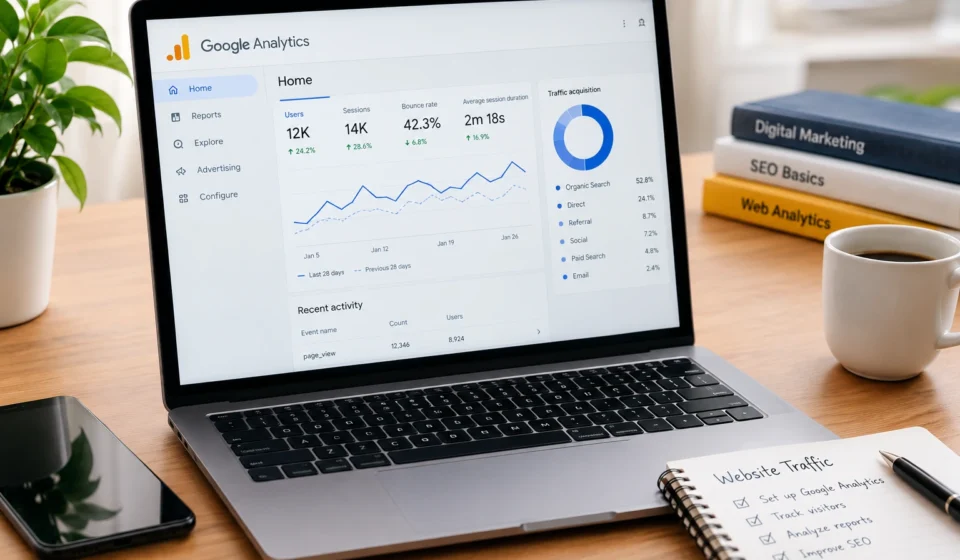

Do you want to know how many people visit your website, where they come from, and what they do after arriving? Google Analytics is a powerful web analytics tool that helps website owners understand visitor behavior, measure website performance, and make data-driven decisions.
Whether you run a personal blog, an e-commerce store, a business website, or a content platform, understanding Google Analytics can help you identify what works and where improvements are needed.
In 2026, Google Analytics 4 (GA4) remains the platform to learn for website traffic tracking. It helps you monitor visitors, page views, traffic sources, engagement, and important actions such as purchases or form submissions.
The good news is that beginners do not need advanced technical skills to get started. With the right setup and a basic understanding of reports, you can use Google Analytics to measure website traffic and improve your online strategy.
In this guide, we will answer the most important questions about Google Analytics, explain how to set it up, and show you how to use its reports to understand your website traffic.
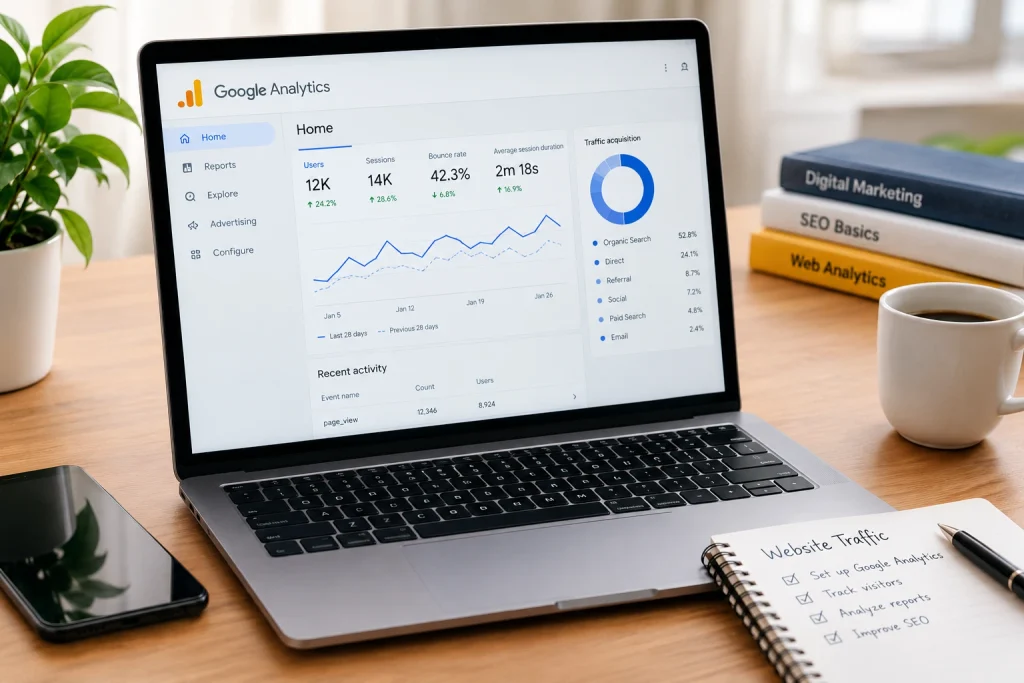
What Is Google Analytics and How Does It Work?
Google Analytics is a free web analytics platform that collects and organizes information about how people interact with your website or app. It turns visitor activity into reports that help you understand your audience and evaluate your website’s performance.
Google Analytics 4 uses an event-based measurement model. This means it records interactions as events rather than relying only on traditional page-based measurements.
For example, Google Analytics can help you measure:
- Users: The number of people who visit your website, as estimated by Analytics.
- Sessions: Groups of interactions that occur during a visit.
- Page views: How often website pages are viewed.
- Engagement: How visitors interact with your website.
- Traffic sources: Where visitors come from, such as search engines, social media, or other websites.
- Conversions and key events: Important actions visitors complete, such as submitting a contact form or making a purchase.
Once Google Analytics is installed correctly, it collects eligible website activity and organizes the information into reports. You can then use these insights to understand visitor behavior and improve your content, marketing, and website experience.
Why Should Beginners Use Google Analytics to Track Website Traffic?
Tracking website traffic helps you understand whether your website is attracting the right audience and meeting its goals.
Without reliable analytics, it can be difficult to determine which blog posts attract visitors, which marketing channels work best, or which pages need improvement.
Google Analytics helps beginners answer questions such as:
- How many people visit my website?
- Which pages receive the most views?
- How do visitors find my website?
- Are people engaging with my content?
- Which marketing channels attract valuable visitors?
- Are visitors completing important actions?
For example, imagine that you publish ten blog posts and discover that three of them attract most of your organic search traffic. You can investigate what makes those posts successful and apply similar approaches to future content.
Google Analytics also helps you evaluate changes over time. Comparing traffic across consistent date ranges can reveal whether your content strategy is improving or whether a particular campaign needs attention.
How Do You Set Up Google Analytics for a Website in 2026?
Setting up Google Analytics involves creating an account, creating a GA4 property, connecting your website, and verifying that data is being collected.
Follow these beginner-friendly steps.
Step 1: Create a Google Analytics Account
Visit the official Google Analytics website at https://analytics.google.com/.
Sign in with your Google account and select Start Measuring if you are creating an account for the first time.
Follow the setup instructions to provide an account name and configure the relevant account settings.
Step 2: Create a GA4 Property
A property is where Google Analytics organizes data for your website or app.
Enter a property name, select your reporting time zone and currency, and complete the requested business information.
Choose the time zone carefully because it affects how dates and reporting periods are displayed.
Step 3: Create a Web Data Stream
In your property’s Admin section, open Data Streams and choose the option to add a web stream.
Enter your website URL and a name for the stream.
You can enable enhanced measurement to collect supported interactions, such as page views and certain scrolling, outbound-click, and file-download events, where applicable.
Step 4: Install the Google Tag
Google Analytics needs a tracking tag to collect website data.
Depending on your website platform, you may be able to install the tag by:
- Using a built-in Google Analytics integration.
- Entering your Google tag ID, which commonly begins with G-, in your website settings.
- Using Google Tag Manager.
- Adding the Google tag directly to your website’s code.
If you use WordPress, Shopify, Wix, Squarespace, or another website builder, check its official setup instructions to choose the appropriate installation method.
Avoid installing the same tag multiple times, as duplicate implementations can cause inaccurate measurements.
Step 5: Verify Data Collection
After installation, open Google Analytics and navigate to the Realtime report.
Visit your website in another browser tab and check whether your activity appears in the report.
Data collection may begin within minutes, although processing and reporting delays can occur. If nothing appears, check the tag installation, selected property, consent settings, and any browser or security tools that might prevent data collection.
For detailed instructions, consult Google’s official Analytics setup guide.
Which Google Analytics Reports Should Beginners Check First?
Google Analytics includes several reports, but beginners can start with a few essential ones.
Realtime Report
The real-time report shows recent activity on your website.
Use it to check whether your tracking setup is working and to observe activity shortly after publishing new content or launching a campaign.
Reports Snapshot
The Reports snapshot provides a high-level overview of selected website performance metrics.
It is useful when you want a quick summary before exploring more detailed reports.
Traffic Acquisition Report
The traffic acquisition report helps you understand where website sessions originate.
Depending on the report configuration, you can investigate channels such as:
- Organic Search
- Direct
- Organic Social
- Referral
- Paid Search
For example, if Organic Search generates a large share of your sessions, search engines may be an important source of traffic for your website.
You can find this report under Reports → Acquisition → Traffic acquisition, when it is available in your property’s reporting navigation.
Pages and Screens Report
This report helps you understand which pages receive views and how visitors interact with your content.
For bloggers, it can reveal which articles attract attention and which pages may deserve updates or better internal links.
Engagement Reports
Engagement reports help you evaluate how visitors interact with your website. Depending on your setup, these reports can include engagement metrics, events, landing pages, and key events.
Reviewing these reports regularly makes Google Analytics easier to understand and more useful for everyday website management.
How Can You Track Website Traffic Using Google Analytics?
Once Google Analytics is collecting data, you can begin measuring website traffic by following a simple process.
First, choose a date range. Select a period such as the previous 28 days or the previous month. Use the same reporting period when making comparisons.
Second, review your users and sessions. These metrics help you understand how many people visited your website and how many visits occurred.
Third, identify your main traffic sources. Open the traffic acquisition report to see which channels bring visitors to your website.
Fourth, examine your most-viewed pages. Use the Pages and Screens report to identify popular articles, product pages, and other content.
Fifth, compare performance over time. Look for meaningful increases or decreases in traffic and investigate possible explanations, such as new content, seasonal interest, or marketing campaigns.
For example, if a blog post receives more organic traffic after you update its content, you can investigate whether its search visibility or relevance improved. However, do not assume the update caused the change without considering other factors.
Google Analytics helps you measure website traffic, but interpreting the numbers correctly is just as important as collecting them.
How Do You Find Out Where Your Website Visitors Come From?
Understanding traffic sources is one of the most useful features of Google Analytics.
Traffic source reports help you identify how people discover your website and which channels contribute to your overall traffic.
Common traffic sources include:
Organic Search: Visitors arriving through unpaid search engine results.
Direct: Visits for which Analytics does not identify a referring source. Direct traffic can include typed URLs, bookmarks, and visits where referral information is unavailable.
Referral: Visitors arriving through links on other websites.
Organic Social: Visitors arriving through unpaid social media links, which are correctly identified.
Paid Search: Visitors arriving through paid search advertising.
Email: Visitors arriving through email campaigns when campaign tracking is configured appropriately.
To review these sources, open the traffic acquisition report in Google Analytics and examine the available session source, medium, or channel-grouping dimensions.
If you promote articles through newsletters or social media, consider using consistent UTM campaign parameters. These parameters help analytics identify campaign traffic more accurately.
For instance, you might use campaign parameters to distinguish visitors from a newsletter from visitors arriving through a social media post.
Understanding traffic sources helps you decide where to invest your time and how to improve your website promotion strategy.
Which Google Analytics Metrics Matter Most for Beginners?
Google Analytics provides many metrics, but beginners should focus on those that support their website’s goals.
Metric: What it tells you about users The number of users identified in the selected reporting period sessions The number of sessions recorded views The number of times pages or screens were viewed Engagement rate: The percentage of sessions that were engaged sessions Average engagement time The average time your website or app was actively engaged with users, according to the metric’s definition Key events: The number of times designated important events occurred Session source/medium Where sessions came from and how the traffic was categorized
For a content website, users, sessions, landing pages, engagement, and organic search traffic can be useful starting points.
For an online store, you may also want to measure purchases, purchase revenue, and product-related events.
For a lead-generation website, form submissions and other meaningful lead actions may be more important than total page views.
The most important lesson is that more traffic does not automatically mean better performance. Focus on whether the visitors you attract are engaging with your content and completing the actions that matter to your website.
How Can You Use Google Analytics to Improve SEO?
Google Analytics can help you evaluate website traffic associated with organic search, understand landing-page engagement, and identify content that deserves further investigation.
However, Google Analytics does not replace a dedicated search performance tool. It generally does not show all the search queries that people use to discover your website.
Here are several practical ways to use Google Analytics alongside your SEO strategy.
Identify Your Most Popular Landing Pages
Review landing-page performance to see which pages attract visitors at the beginning of their sessions.
If certain blog posts consistently attract organic visitors, consider updating outdated information, improving readability, and adding relevant internal links.
Find Pages That Need Attention
Look for pages that attract visitors but show limited engagement or few important actions.
Investigate whether the page answers the visitor’s question, loads properly, works well on mobile devices, and provides a clear next step.
Do not automatically label a page unsuccessful because it has low engagement. A page that answers a simple question may meet the visitor’s needs quickly.
Compare Organic Traffic Over Time
Compare equivalent periods to identify traffic changes.
If organic traffic decreases, investigate potential explanations such as seasonality, changes in search demand, technical issues, content quality, or search visibility.
Connect Google Analytics with Search Console.
Google Search Console provides information about search impressions, clicks, and search queries. Linking it with Google Analytics can make it easier to evaluate the relationship between search performance and website engagement.
Together, these tools can help you build a more complete picture of how people discover and use your website.
How Can You Track Important Website Actions in Google Analytics?
Tracking website visits is useful, but understanding what visitors do after arriving can be even more valuable.
Google Analytics collects many events automatically or through supported measurement features, while other actions may require additional configuration.
Examples of important actions include:
- Submitting a contact form.
- Completing a purchase.
- Signing up for a newsletter.
- Downloading a resource.
- Clicking a call-to-action link.
In GA4, you can designate suitable events as key events when they represent important outcomes for your website.
For example, a business website might treat a successful lead form submission as a key event. An online store might prioritize completed purchases.
Make sure the events you configure represent genuine user actions. Test your setup to avoid duplicate counts or events that fire when the intended action has not actually occurred.
Also, respect applicable privacy laws, consent requirements, and Google’s data collection policies. Do not send personally identifiable information to Google Analytics through event names, URLs, or event parameters.
What Are the Most Common Google Analytics Mistakes Beginners Should Avoid?
Even a basic Google Analytics setup can become misleading if it is configured incorrectly.
Avoid these common mistakes:
1. Installing the tracking tag incorrectly. An incorrect or missing tag can prevent data from being collected.
2. Installing duplicate tags. Multiple implementations can result in duplicate events or inflated measurements.
3. Ignoring consent settings. Consent choices and privacy controls can affect which data is collected.
4. Misunderstanding traffic sources. Direct traffic does not always mean visitors typed your URL manually.
5. Comparing different date ranges. Compare equivalent periods and consider seasonality before drawing conclusions.
6. Focusing only on page views. Page views alone cannot tell you whether visitors found your content useful or completed important actions.
7. Expecting historical data before installation. Google Analytics generally starts collecting website data after the tracking setup becomes active. It does not automatically reconstruct earlier visitor activity.
8. Making decisions from very small samples. A small change in a low-traffic website may not represent a lasting trend.
By avoiding these mistakes, you can make Google Analytics a more reliable source of information for your website.
How Often Should You Check Google Analytics?
The right reporting schedule depends on your website’s size, goals, and publishing frequency.
For most beginners, a simple routine is enough.
- Weekly: Check traffic sources, popular landing pages, and unexpected changes.
- Monthly: Compare users, sessions, engagement, and key events with the previous period.
- After major changes: Verify tracking after redesigns, analytics updates, campaign launches, or changes to your website platform.
Avoid checking every metric every day without a clear purpose. A regular reporting routine helps you identify meaningful trends without reacting to every small fluctuation.
As you become more comfortable with Google Analytics, you can create custom reports and explorations that focus on your website’s specific goals.
Conclusion: Is Google Analytics Worth Learning in 2026?
Yes. Google Analytics remains a valuable tool for understanding website traffic, measuring engagement, and evaluating online performance.
For beginners, the best approach is to start with the fundamentals: set up a GA4 property, install the tracking tag, verify data collection, and learn how to use the Realtime, Traffic Acquisition, and Pages and Screens reports.
Once you understand these reports, you can begin measuring important actions, investigating traffic changes, and improving your content strategy.
Remember that Google Analytics is most useful when you connect data to real decisions. Rather than focusing only on the number of visitors, use the insights to understand your audience, improve your website, and work toward measurable goals.
Start with a few essential metrics, review them consistently, and expand your knowledge as your website grows.
Frequently Asked Questions (FAQs)
1. Is Google Analytics free to use?
Yes. Google Analytics offers a free version that is suitable for many individuals, bloggers, and small businesses. Google also offers a paid enterprise version with additional capabilities.
2. Is Google Analytics suitable for beginners?
Yes. Beginners can start with basic reports that show users, sessions, page views, traffic sources, and engagement. You can explore advanced reporting features as your knowledge improves.
3. How long does Google Analytics take to show website traffic?
Data may begin appearing within minutes of a correct setup. The Realtime report is useful for testing your installation, while other reports may take longer to populate or process data.
4. Can Google Analytics track website visitors in real time?
Yes. The real-time report shows recent website activity. However, it does not necessarily represent every visitor or every event because consent settings, technical limitations, and data processing can affect what is reported.
5. Can Google Analytics show where my website traffic comes from?
Yes. The traffic acquisition report helps you identify channels and traffic sources, including organic search, direct, referral, and paid traffic, when the information is available.
6. Does Google Analytics help with SEO?
Yes. Google Analytics helps you evaluate organic search traffic, landing-page performance, and visitor engagement. For search queries, impressions, and click data, use Google Search Console as well.
7. Can I use Google Analytics with WordPress?
Yes. You can connect Google Analytics to WordPress using a compatible integration, a supported plugin, Google Tag Manager, or a manual installation. Choose one appropriate method and verify that your tracking is working correctly.
8. What is the difference between users and sessions in Google Analytics?
Users represent people or user identities recognized by Analytics, while sessions represent periods of interaction with your website. One user can generate multiple sessions.
9. Does Google Analytics track every visitor?
No. Google Analytics does not necessarily record every visit. Consent choices, browser settings, ad blockers, technical issues, and measurement limitations can affect data collection.
10. Can Google Analytics show who visited my website by name?
Google Analytics is designed to provide analytics about website activity rather than identify individual visitors by name. You should not send personally identifiable information to Google Analytics, and you must follow applicable privacy requirements.
11. What is the difference between Google Analytics 4 and Universal Analytics?
Google Analytics 4 uses an event-based data model and is the version to learn for current website tracking. Standard Universal Analytics properties stopped processing new data in 2023, so beginners should focus on GA4.
12. What is the best way to learn Google Analytics in 2026?
Start by setting up a test property or using Google’s demo account, learning the main reports, and tracking a small number of meaningful metrics. Google’s official Analytics Help Center is a good place to find current setup and reporting instruV
Visit Home